

Purpose
- This document is designed to assist users in efficiently resolving issues with their xTool F2 Ultra by providing essential information required for technical support. By following the instructions in this guide, you will learn how to garner critical data and information, including software versions, firmware versions, xTool Studio debug files, xTool Studio project files, etc.
- This information will enable our technical support team to diagnose and address problems more effectively, ensuring a smoother and faster resolution process.
What do we need?
Item 1: xTool Studio software version
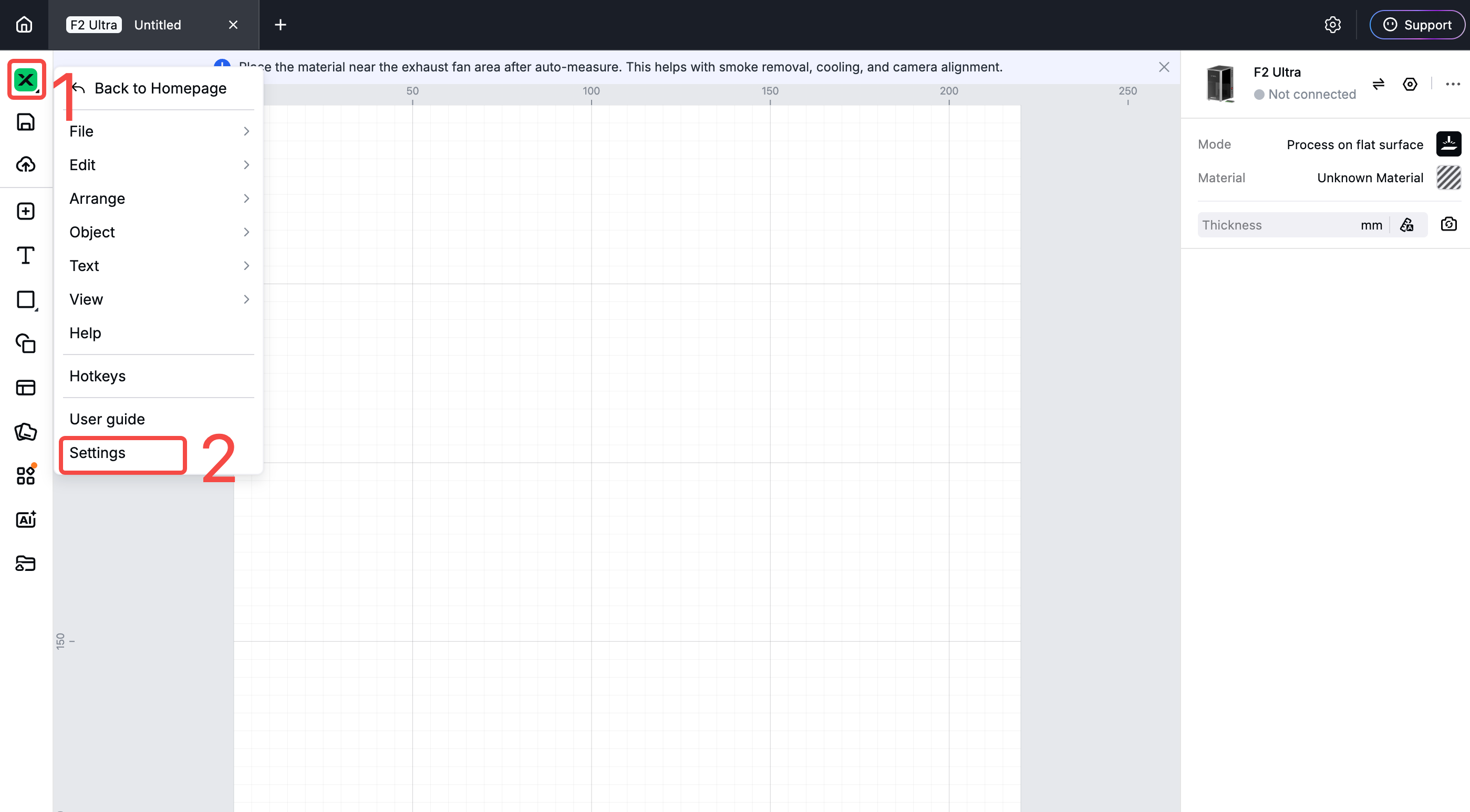
1. Within xTool Studio, navigate to the top left corner and click the “X” icon to locate “Settings”.
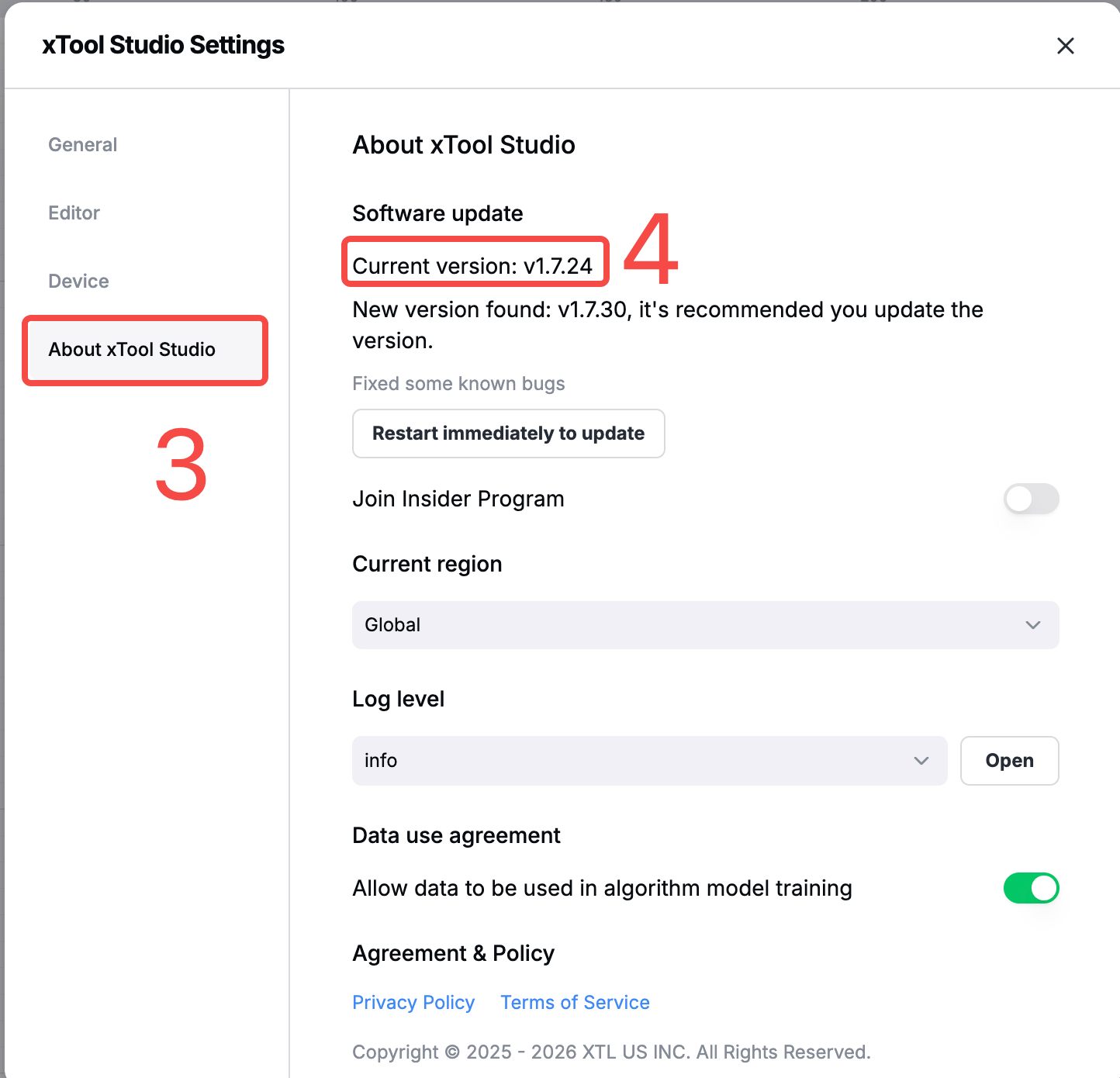
2. In the “xTool Studio settings”, locate the “About xTool Studio” tab where you may find your current software version.
Item 2: xTool Studio debug file
To glean the debug record, follow these steps:
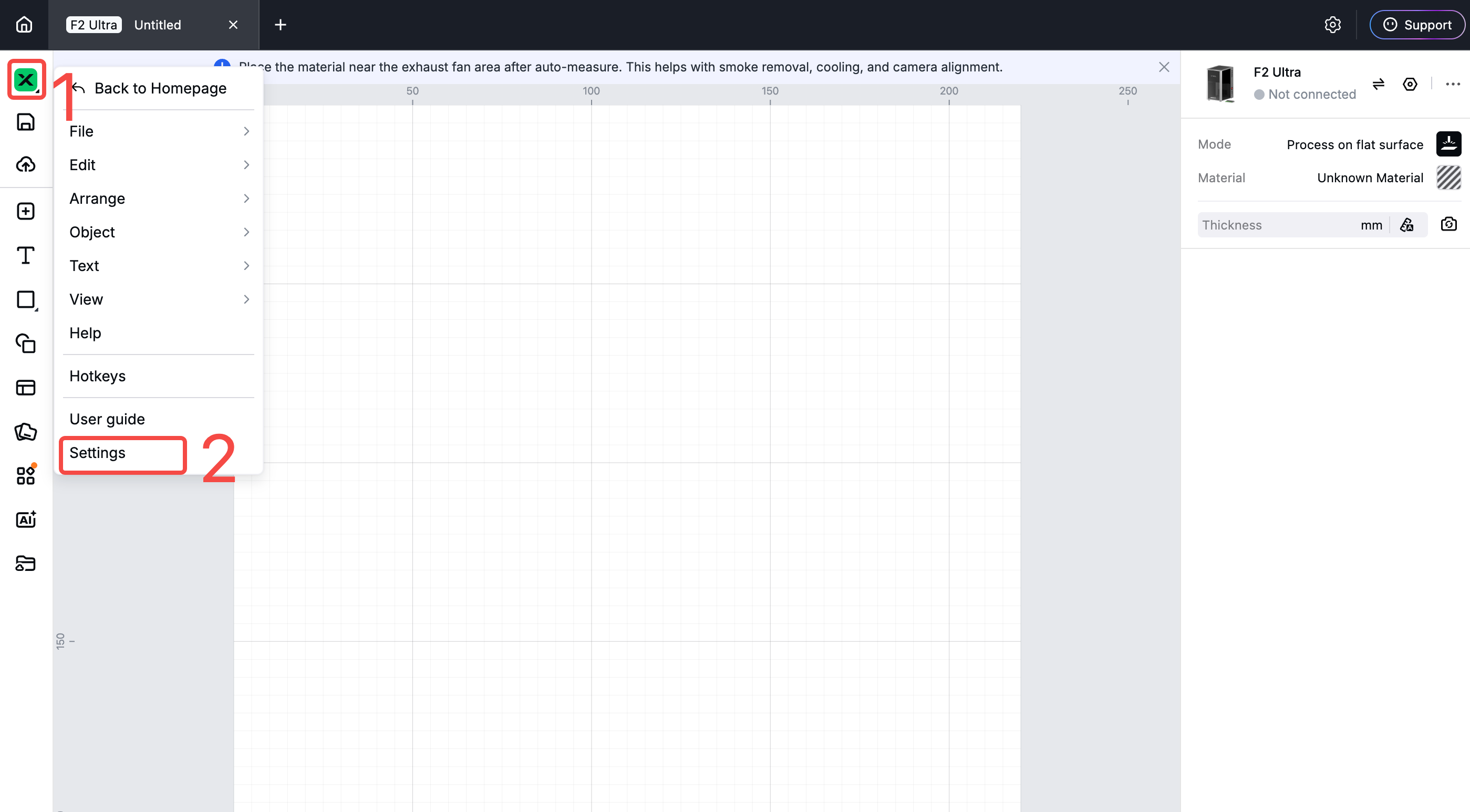
1. Click the X icon in the top left corner.
2. Navigate to the “Settings” section.
3. In the “xTool Studio settings”, locate the “About xTool Studio” tab.
4. In the “Log level” setting, click "Open" and navigate to the folder containing the debug records.
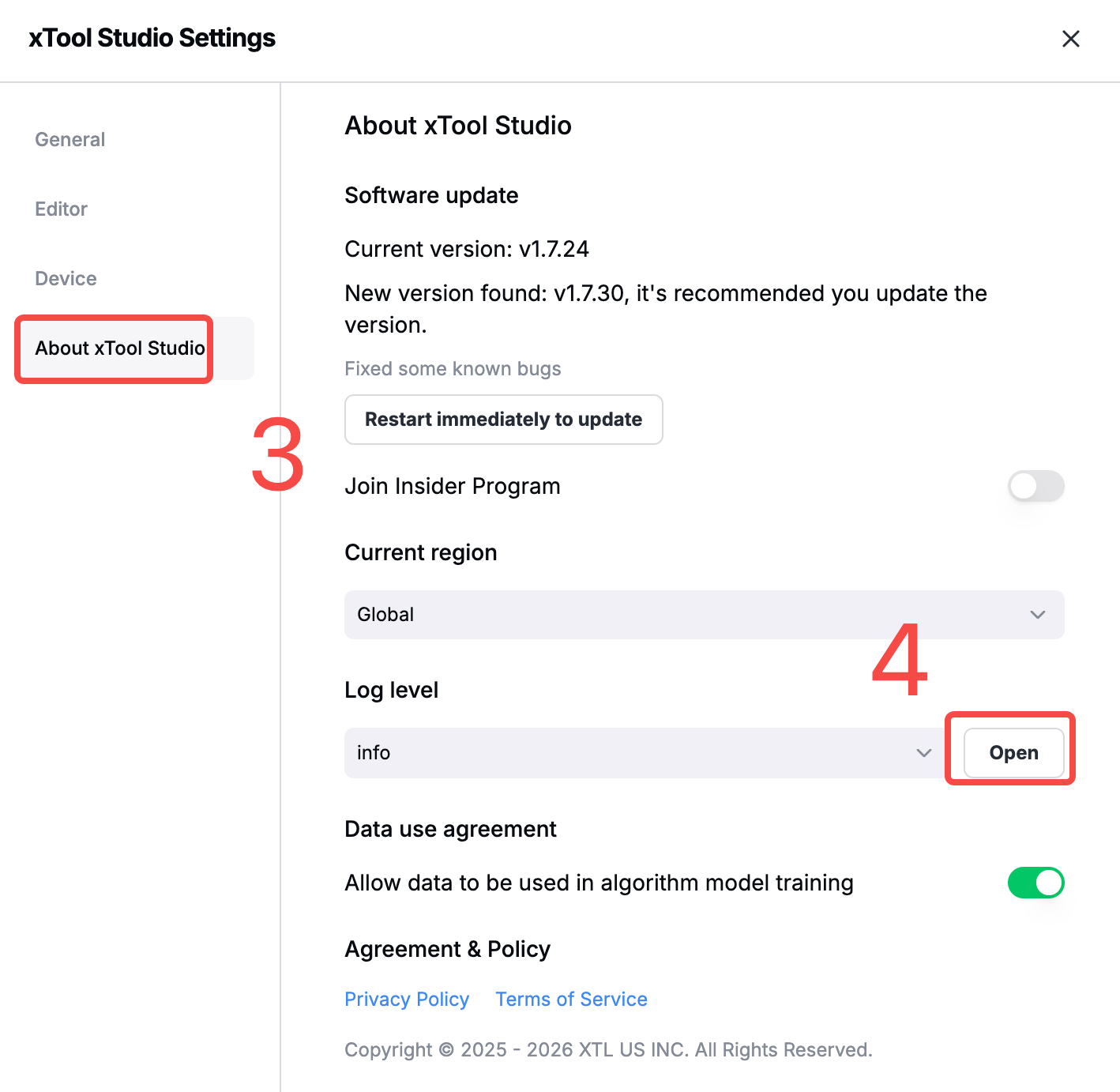
5. You will find the debug files exported to your computer storage.
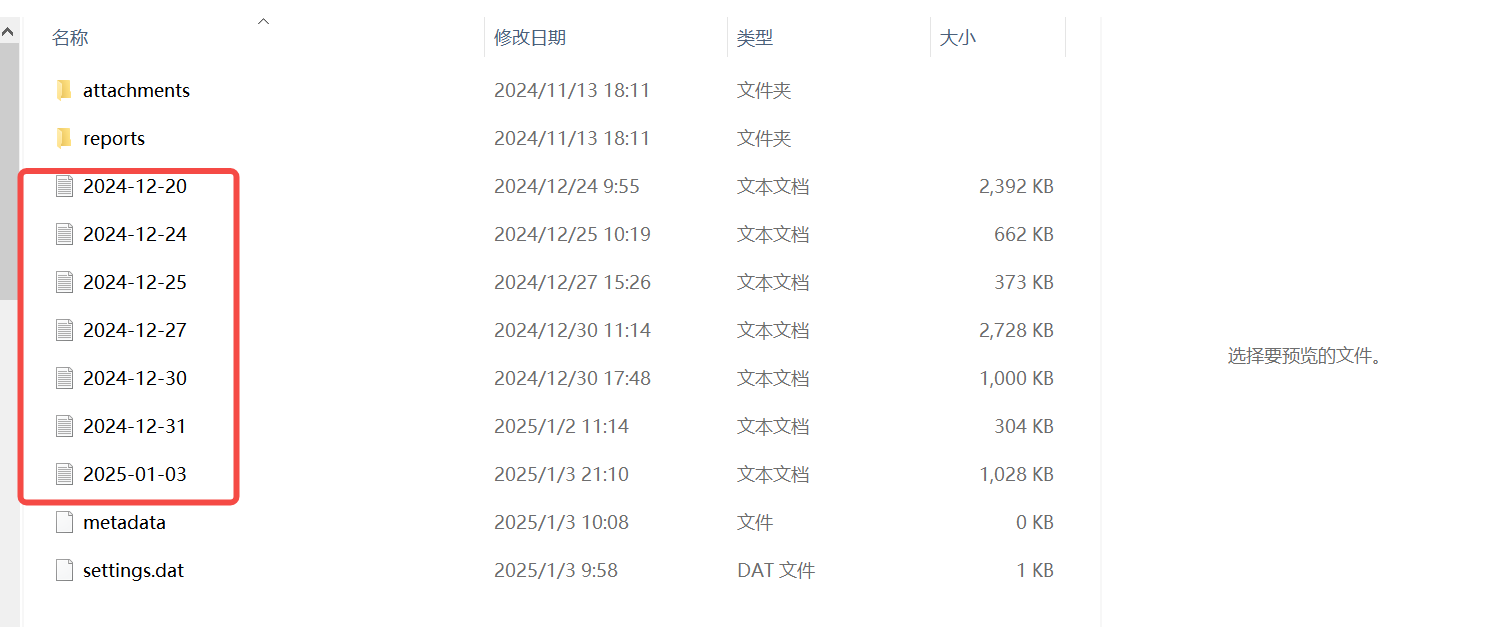
NOTE: Please forward us the debug files from the day before the issue occurred to the day after.
Item 3: xTool Studio project File
To export the xTool Studio processing file, follow these steps:
1. Click the X icon in the top left corner.
2. Navigate to the “File” section.
3. Select “Save as…” to save the xTool Studio project file.
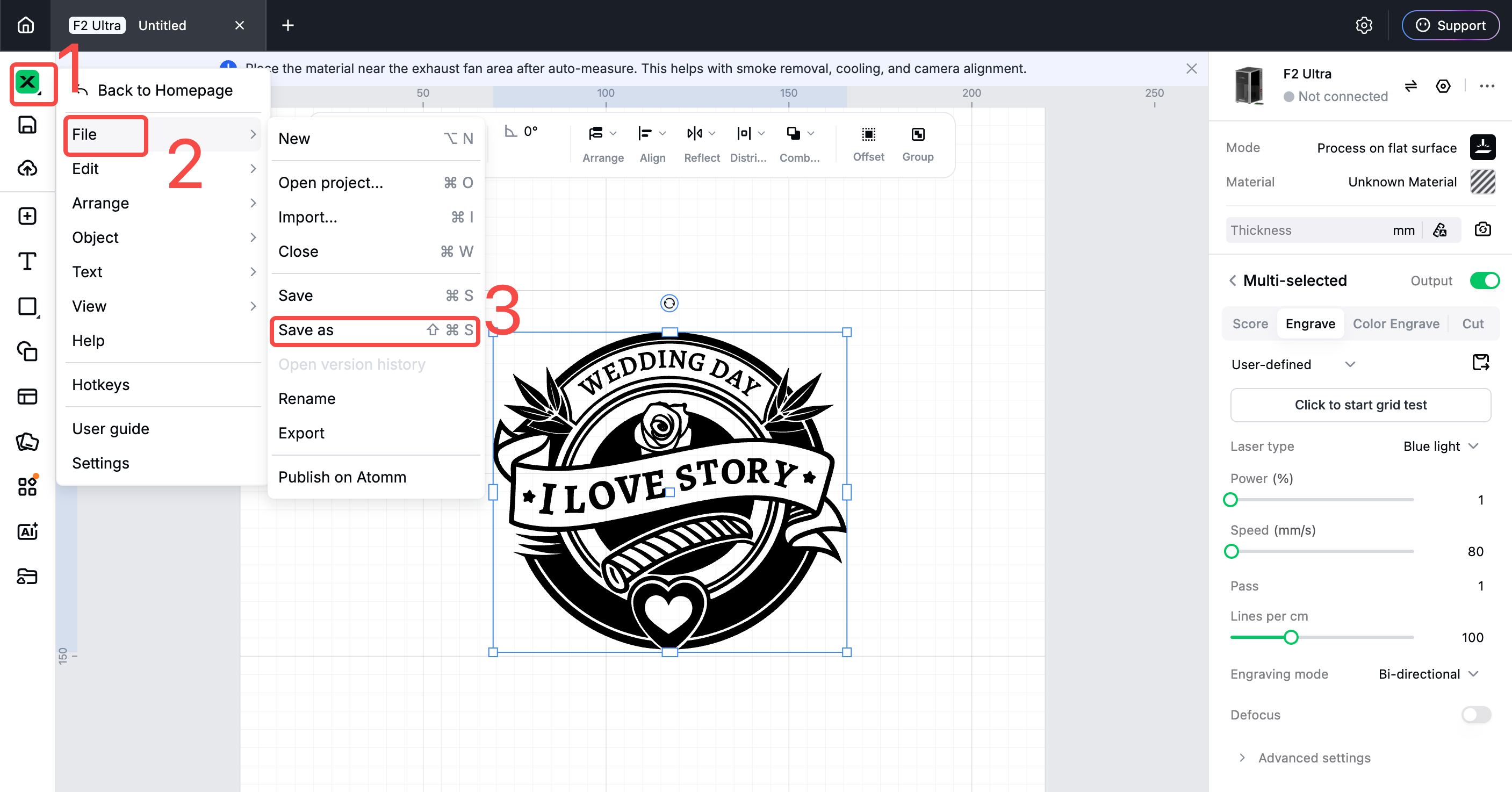
This file includes important information such as processing mode and parameters that you are engaging to help us better identify the cause of the issue.
Item 4: Firmware version
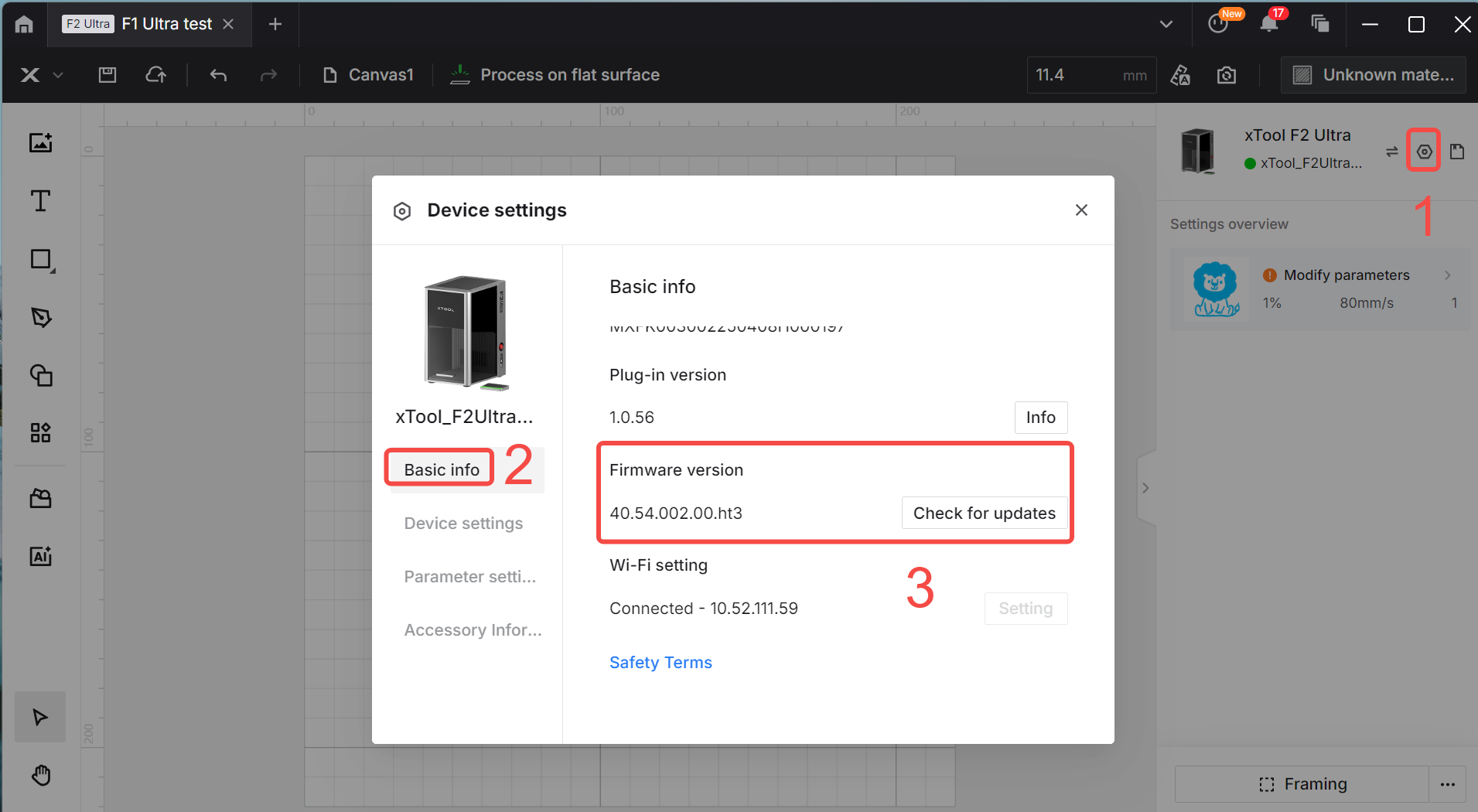
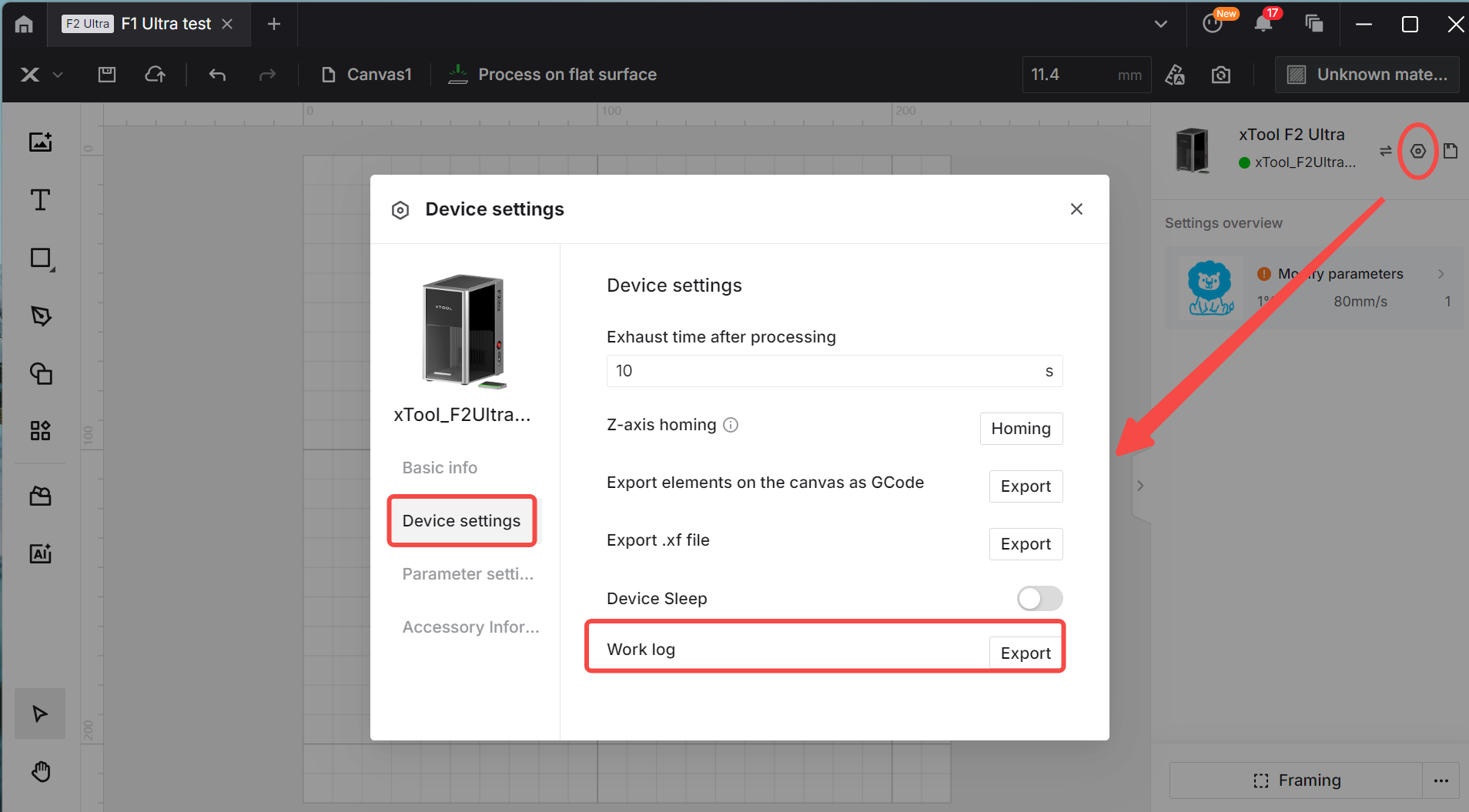
1. Within xTool Studio, click the gear icon on the top right corner.
2. Navigate to the "Basic info" tab and scroll down the list to access your firmware version.
Item 5: F2 Ultra device log
To export the log file, follow these steps:
1. Click the gear icon in the top right corner.
2. Navigate to the “Device settings” tab, where you will find the “Export” button next to “Work Log”.
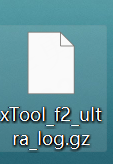
3. In the directory where the log file is saved, locate the “xTool_f2_ultra_log.gz” file and send it to xTool Customer Service. This is the log file we need.
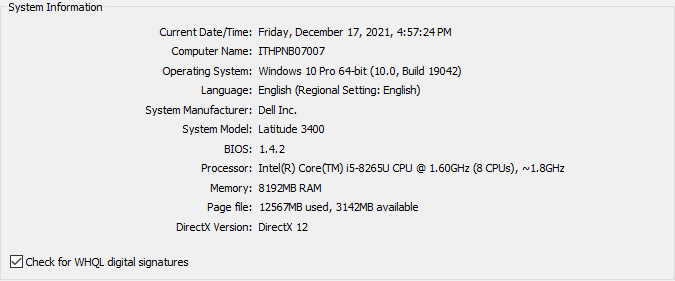
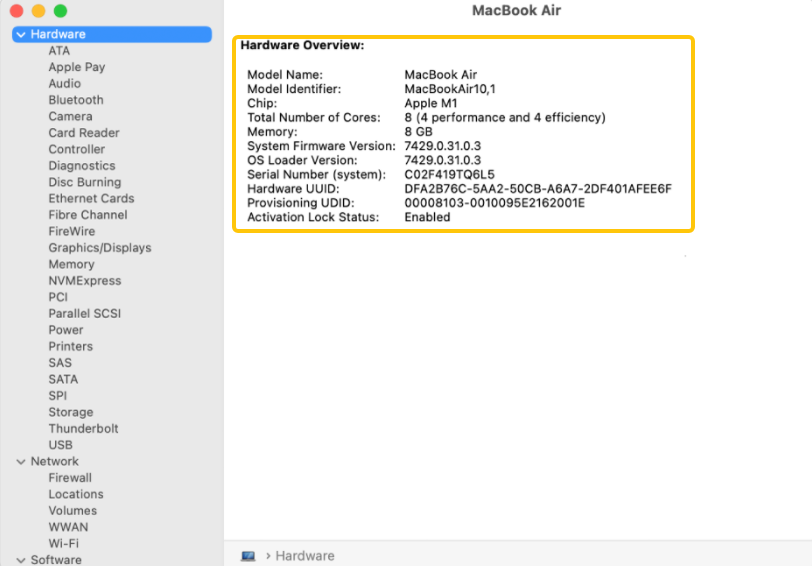
Item 6: Your PC specification
View your computer system information by following these instructions:
For Windows users
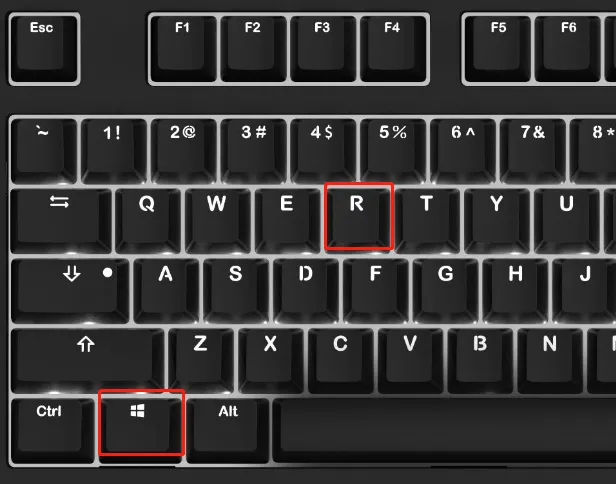
1. Press the "Win + R" keys to open the Run command window.
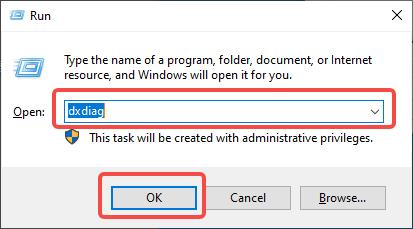
2. Type "dxdiag" in the search field and click OK.
3. Your computer system information will appear in the pop-up window as below.
For Mac users
1. Choose "Apple menu > System Settings" and click "General" in the sidebar. (You may need to scroll down.)
2. Click "About" on the right and click "System Report".
Item 7: Your original processing image(s)
You may need to provide the image(s) you are using for processing. The image format may include:
- Vector formats: SVG, DXF
- Bitmap formats: JPG, PNG, or other supported types

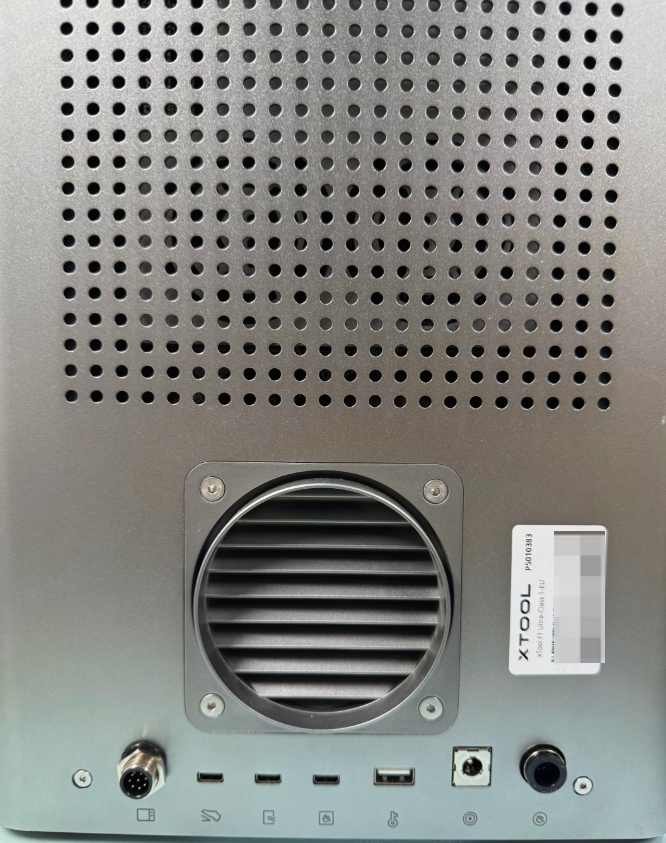
Item 8: Your laser device's SN
The serial number (SN) of your xTool F2 Ultra can be found on the back of the device, near its smoke outlet.
Item 9: Video(s) of your issue
A video recording of the issue can help xTool technical experts better understand your problem. If possible, record:
- Your operations step by step.
- Any error messages or system behaviors.
- Any unusual noises or irregularities.
If the issue is difficult to capture on video, consider taking clear photos of the problem. For issues that are hard to reproduce or occur randomly, please provide as many operation details and descriptions as possible.