

Issue description
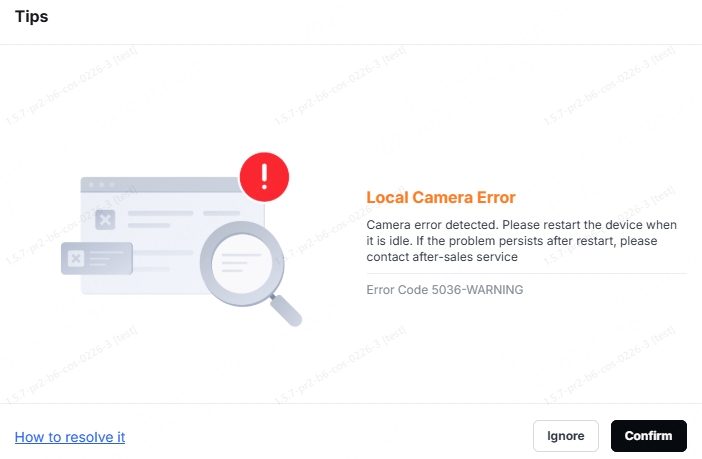
When using xTool M2, the "Local Camera Error" pop-up may appear in xTool Studio (Error Code 5036-WARNING). This error may occur when taking close-up photos or performing close-up stitching.
If this error occurs, the close-view camera may not function properly, causing features that rely on it to be unavailable. Please refer to this guidance.
Possible causes
- Electromagnetic interference
- Incompatible software or firmware version
- The close-view camera cable is loose or has a poor connection
- Close-view camera hardware failure
Troubleshooting procedures
1. Check the software and firmware versions
Check whether the software and firmware versions are up to date. If not, update them to the latest versions.
- Software version
- Firmware version
2. Restart xTool M2 and xTool Studio
(1) Power off xTool M2. After 10 seconds, power it on again and wait for it to complete the self-test and initialization.
(2) Restart xTool Studio, and reconnect xTool M2 to it, test the close-view camera function.
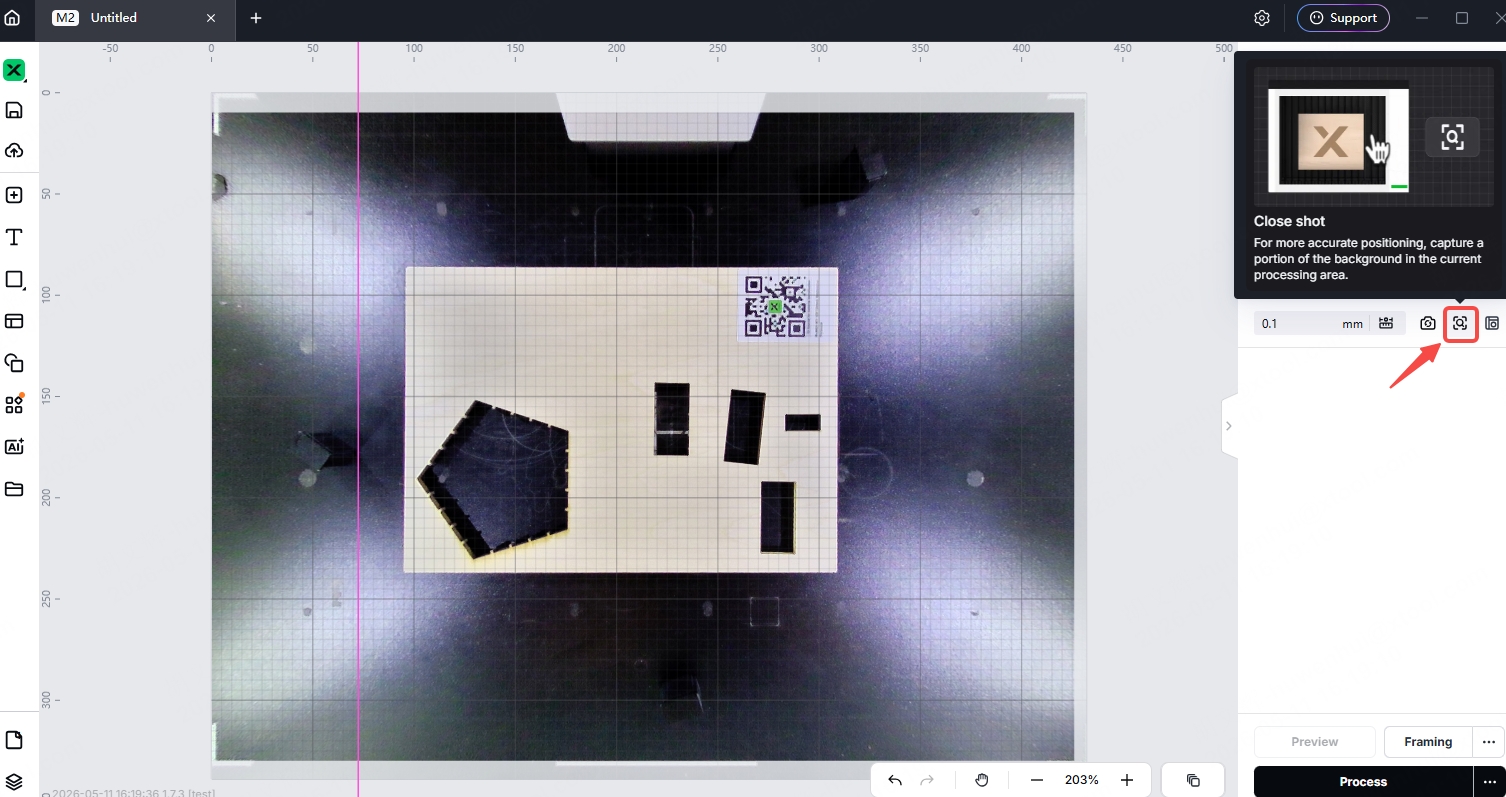
If the camera returns to normal after restarting, this indicates that the issue may have been caused by temporary electromagnetic interference. Please check for devices emitting high levels of electromagnetic radiation (such as induction cookers, microwave ovens, frequency converters, or high-power motors) in the vicinity of xTool M2. Move xTool M2 away from these sources of interference or turn them off to prevent the same problem from recurring.
If the issue persists, proceed to step 3.
3. Check the close-view camera connection cable
Note: Before performing any hardware checks, be sure to turn off the device and unplug the power cable.
(1) Open the case of xTool M2 motherboard. Refer to the section from 0:00 to 0:50 in the video below to locate the cable on the back of the xTool M2 motherboard:
(2) Locate the close-view camera connector on the motherboard, as shown in the figure below.
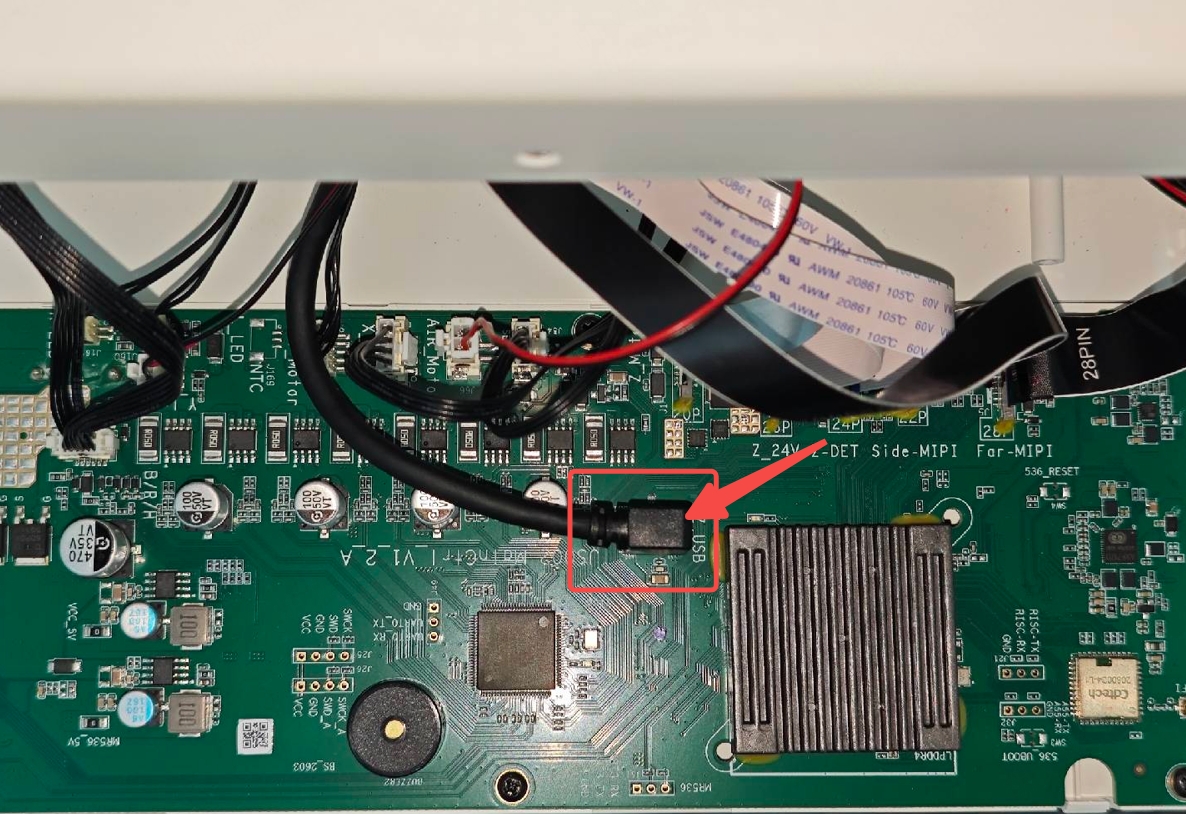
(3) Check if the Connection cable plug is fully inserted into the interface without any skewing, looseness, or oxidation. If it is loose, please re-insert the plug firmly to ensure the buckle or lock is properly in place.
(4) Refer to the section from 0:00 to 0:50 in the video below to locate the cable of the close-view camera:
(5) Check that the connection cable on the camera side is secure, as shown in the figure below.
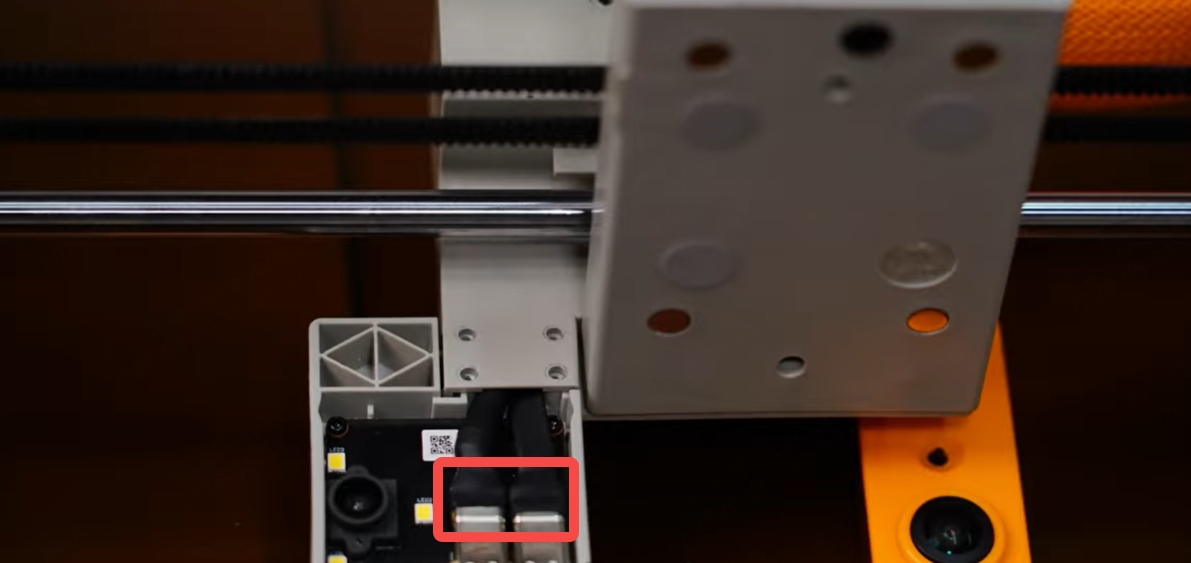
(6) After confirming that all connections are secure, close the case, connect the power supply, start the device, and test the close-view camera function again.
Still experiencing issues?
Should the issue persist after completing the preceding steps, submit a ticket via the "Submit a Ticket" button in the "Help Ticket" section below. The standard response time for xTool Customer Service is one business day.
For a prompt resolution, please include the following details:
- Software version: The software version of xTool Studio that you use.
- Firmware version: The firmware version of xTool M2 that you use.
- Serial number (SN) of xTool M2: Located on the back of the device.
- Error video: A complete video recording of the error.
- Device information: Follow the steps to export the work log.