
Issue description
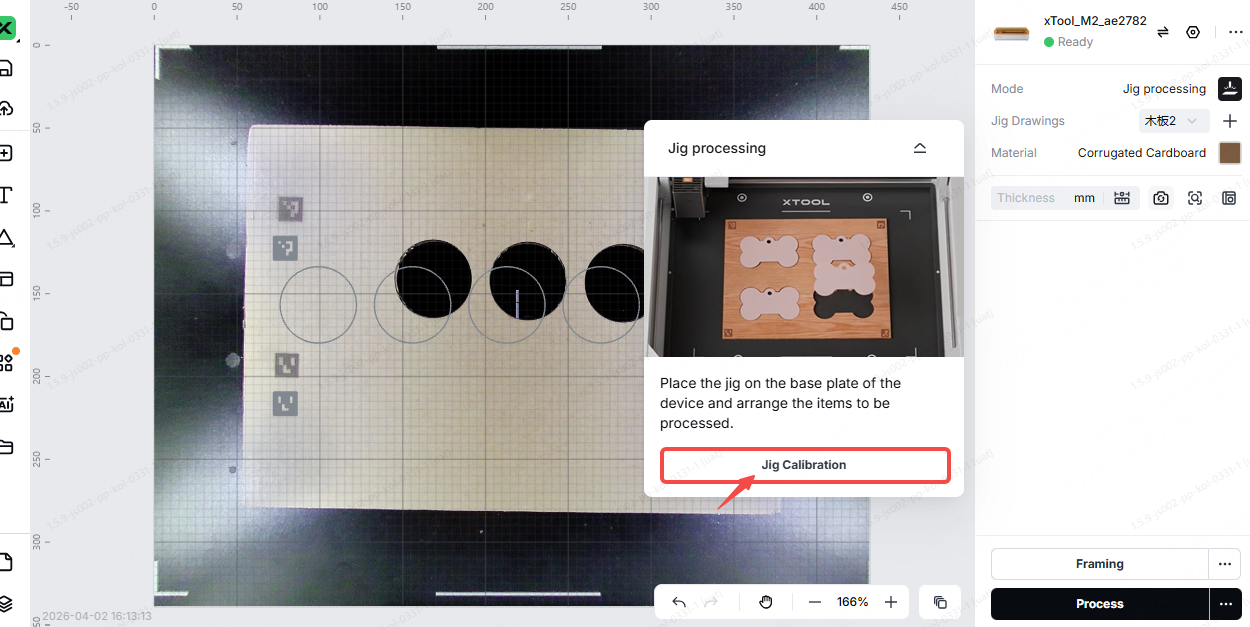
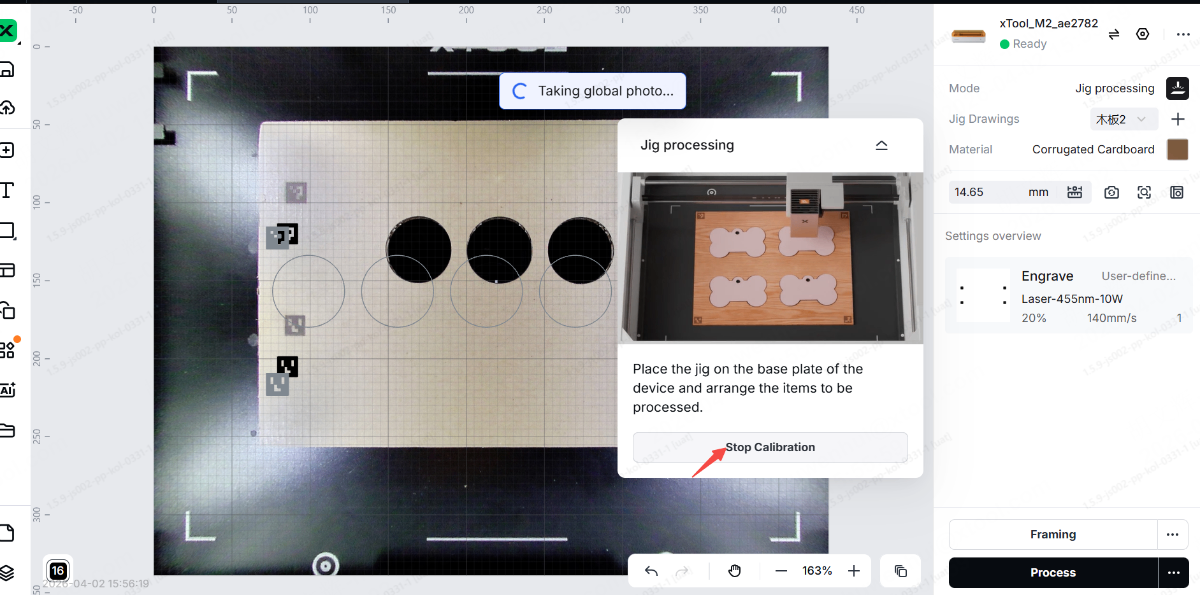
When you use the jig processing, the ArUco codes are engraved directly onto the jig during processing. The ArUco codes contains coordinate data that helps you position the jig. Before processing, the software must calibrate the ArUco codes on the jig, as shown in the figure below.
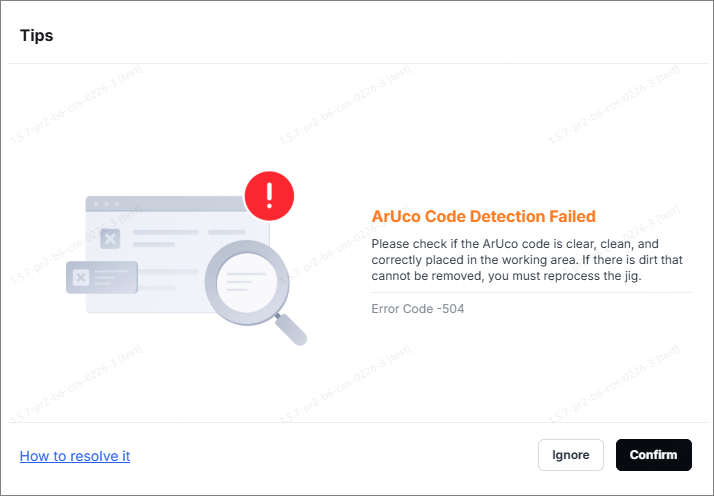
If, after calibration, the xTool Studio software displays a pop-up window with the error code "ArUco Code Detection Failed" (Error Code -504), please refer to the article for troubleshooting.
Possible causes
The ArUco codes are not detected by the camera.
Troubleshooting procedures
1. Check the software and firmware version
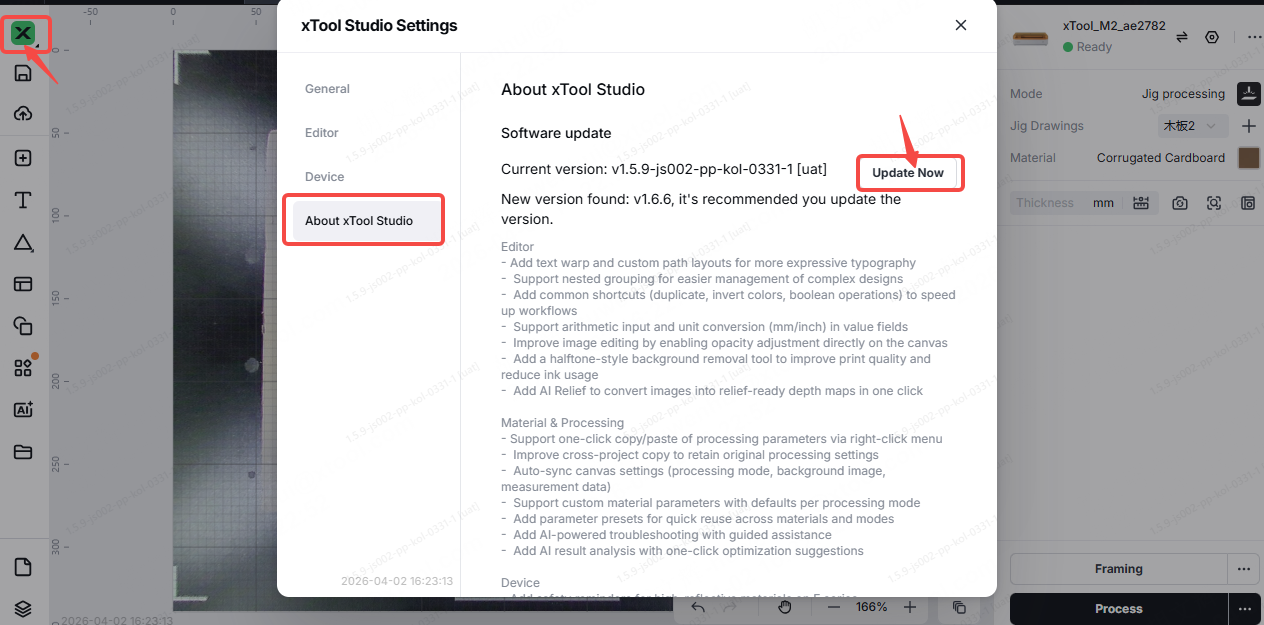
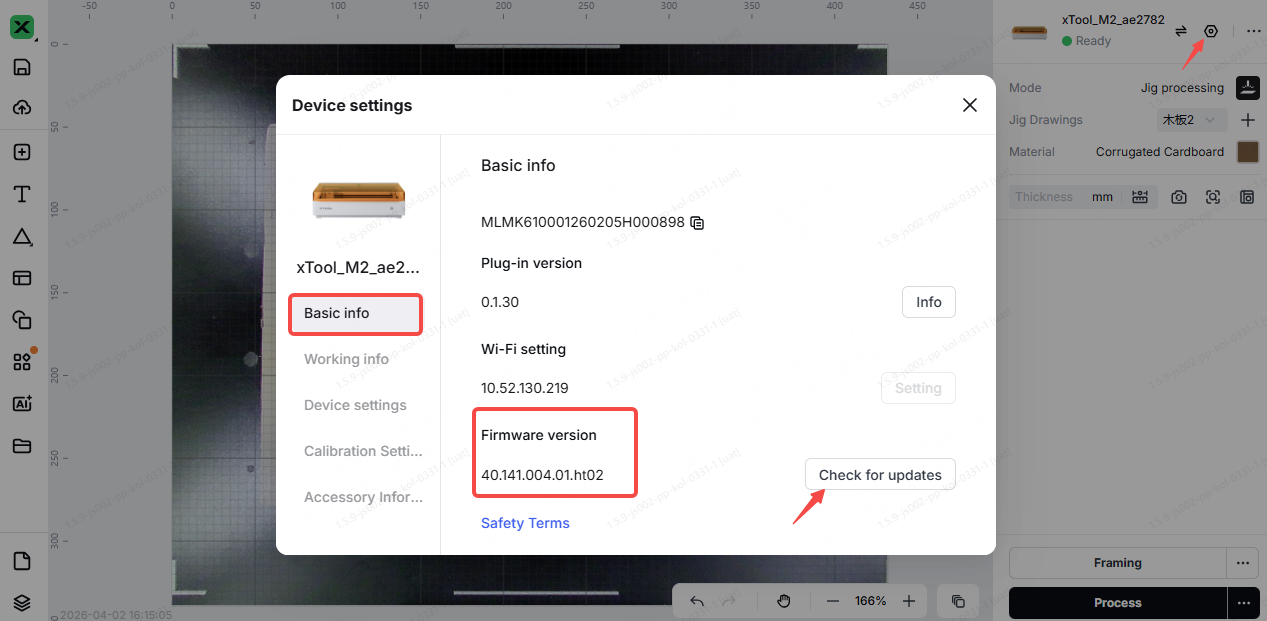
Check that the software and firmware versions are the latest. If not, click Check For Update to update.
Software:
Firmware:
2. Check the ArUco code status
Check to ensure that the ArUco code surfaces are clean, unobstructed, and free of severe wear or smoky marks. If there is any contamination, create a new jig.
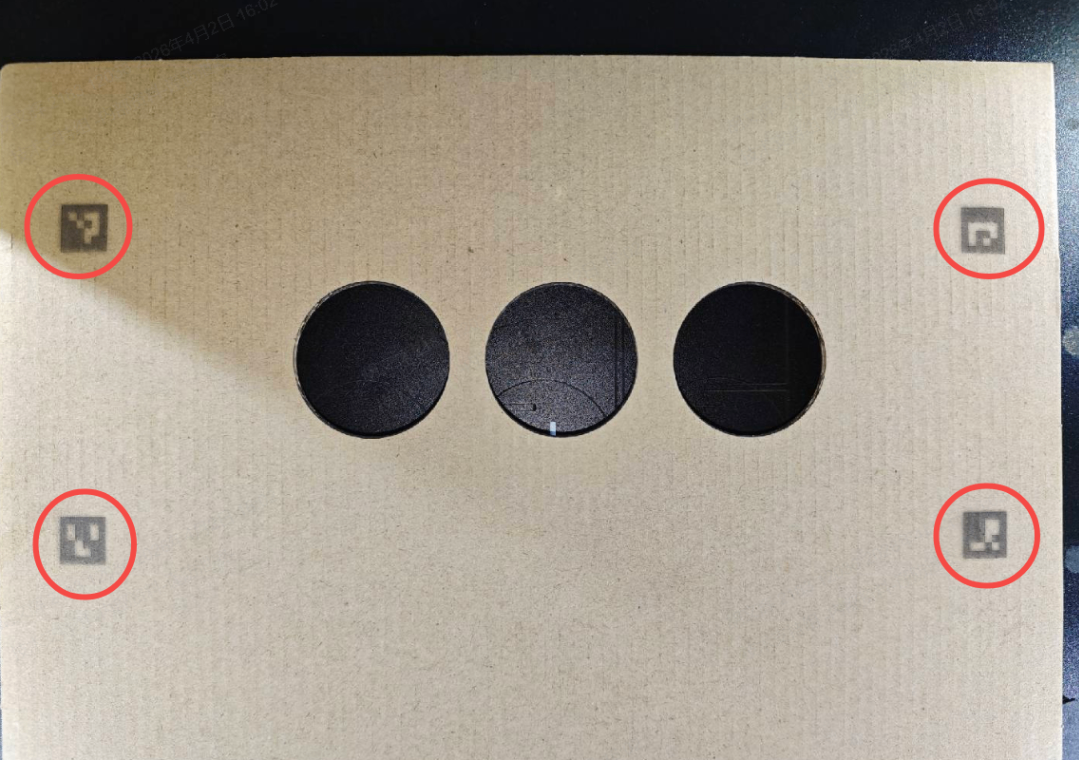
3. Check the ArUco codes' position
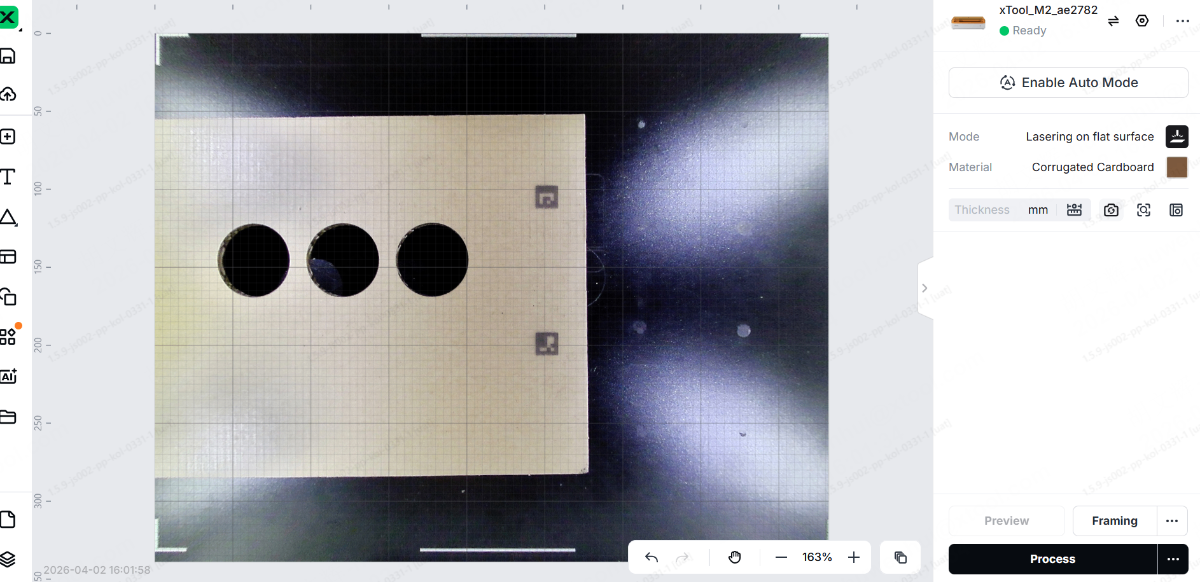
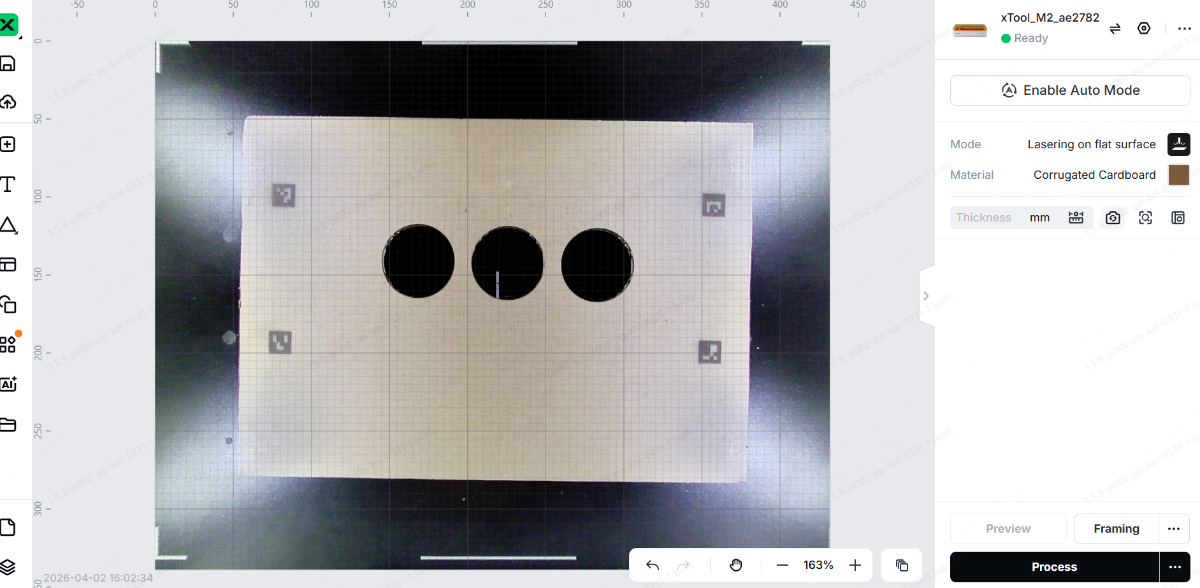
Check to ensure that the ArUco code is correctly positioned within the camera's field of view, without extending beyond the boundaries or being obstructed.
You can click Refresh Background in the software and then check on the canvas to see if the ArUco code is within the visible processing area.
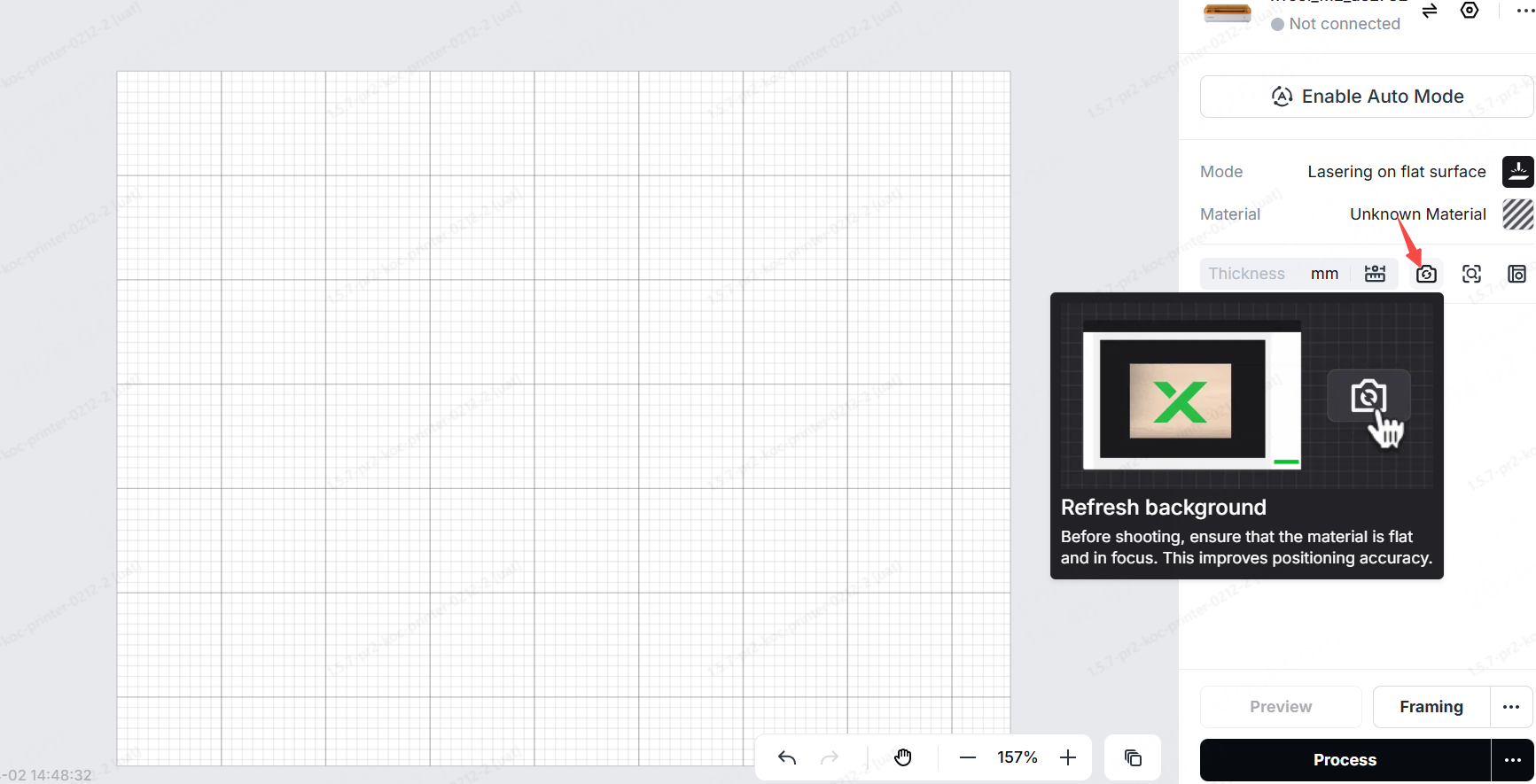
Incorrect result:
Correct result:
4. Calibrate the jig again
If you check and confirm that the ArUco code is not dirty and that the jig is within the processing area, please click Jig Calibration again.