

Issue description
When performing camera calibration on xTool M2, the laser module normally engraves a series of calibration dots (typically on A3 paper). However, after clicking the "Calibrate" button, the calibration process fails, and a pop-up window appears on the software displaying the error message "Camera Extrinsic Calibration Failed" (Error Code -203).
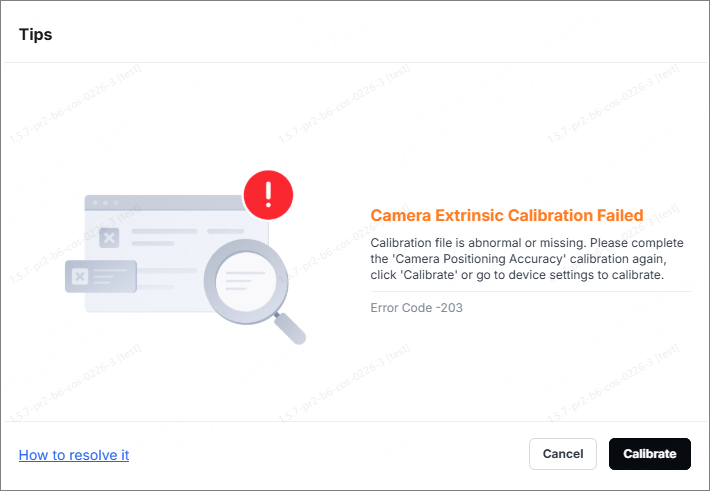
If the error code occurs, the device is unable to complete the camera positioning accuracy calibration and cannot be used further. Please refer to the instructions in this article for troubleshooting.
Possible causes
- The dot pattern is unclear or smudged, making it unrecognizable by the camera.
- The calibration paper is not flat.
- The air pump is turned off during calibration.
- The calibration is unstable, and the calibration conditions change due to slight movement of the paper, changes in light or vibration of the device, and the complete process needs to be re-executed.
Troubleshooting procedures
Note: Avoid touching the device or the paper, and keep the ambient light stable during the calibration.
1. Restart the device
(1) Turn off the power supply of the device and wait about 10 seconds.
(2) Turn the device on and wait for it to finish initializing.
(3) Restart the xTool Studio software.
Important notes:
After restarting the software, there is no need to process the calibration file again.
Click Calibrate directly, and observe whether the calibration succeeds.
- If calibration is successful after a restart, it means that the failure was likely caused by a temporary software or communication issue.
- If the problem persists, proceed to the next steps.
2. Check the grid dots in laser engraving
Observe the dot patterns produced by the laser module to ensure that each dot is clearly visible, has intact edges, and is free of smoke stains or smudges.
- If the dot patterns are clear and have good contrast, you can proceed directly to Step 4.
- If the dot patterns are unclear, smudged, or have insufficient contrast, proceed to Step 3.
3. Check the A3 paper
(1) Check whether the A3 paper placed in the processing area is completely flat, with no creases, warping edges, or air bubbles.
(2) If the paper is not lying flat, please reposition it:
- Use masking tape to secure the paper, ensuring it lies flat against the baseplate.
- If the paper is smoked or stained, it is recommended to replace it with a new one.
- Repeat the calibration operation.
4. Exclude external factors that cause unstable calibration results
During the calibration, ensure that the following conditions remain stable:
- Avoid touching the device or the paper: Do not touch the device, the working table, or the paper during calibration. Make sure the A3 marking paper is firmly secured in place.
- Keep the ambient light stable: Avoid direct exposure to bright light on the processing area. Turn off any flickering lights nearby or use curtains to block out sunlight.
- Prevent device vibration: Ensure the device is placed on a stable work surface and keep it away from vibration (such as washing machines, air conditioner outdoor units, large fans, etc.).
Still experiencing issues?
Should the issue persist after completing the preceding steps, submit a ticket via the "Support" button in the. The standard response time for xTool Customer Service is one business day.
For a prompt resolution, please include the following details:
- Software version: The software version of xTool Studio that you use.
- Video evidence: Attach a video demonstrating the issue, where applicable.
- Device information: Follow the steps to export the work log.
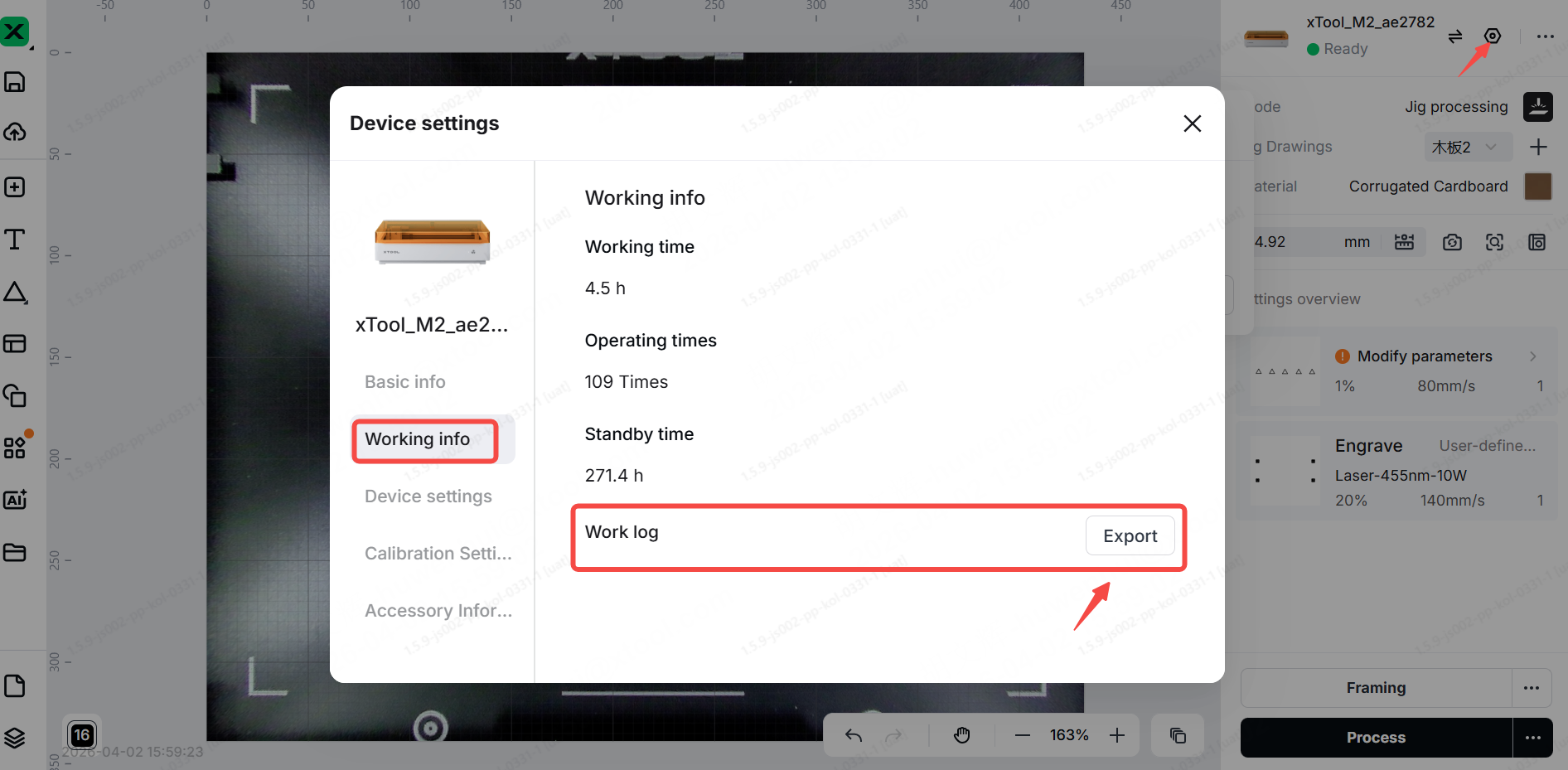
This information is crucial for Mechblock technical support engineers to provide timely assistance.